 Answerfinch
Guide
Send Google Forms email notifications based on answers
If your form collects different kinds of inquiries, not everyone needs every response. Here you'll set up one rule so that sales inquiries go to the person who handles sales.
Try it on a copy of your form or a small test form first, so you don't email a real customer or teammate while you learn.
Before you start
You need edit access to the form and permission to install Answerfinch. If you use Google Workspace at work or school, your administrator may decide which add-ons you can install.
On the free plan you can run one rule at a time across your Google account, with every condition type. You only need Pro if you want more rules running at once.
For this example, add a required multiple-choice question called Inquiry type with the choices Sales and Support. Add Name and Message questions if you want their answers in the email. Then submit one sample response yourself: choose Sales, use the name Sam and the message "I would like a quote". You'll use it to preview the email.
If you only want an email every time someone responds, Google Forms can already do that under Responses → More → Get email notifications for new responses. See Google's help page. Answerfinch is for when the email should depend on the answer, or include it.
1. Create the rule
Open Answerfinch from your form's add-on menu. The first time, you may see Connect this form; choose Start in this form. Then choose Create a rule. If this form already has one of your rules, choose Edit on it instead.
- Rule nameSales inquiry alert
- WhenInquiry type is Sales
- Send toThis address: your own email while you test
- Rule activechecked
For a multiple-choice question, you pick the value from the question's own choices. For a text question you type the value, and it has to match exactly, including capital letters and spaces. You don't need a second rule to ignore Support responses.
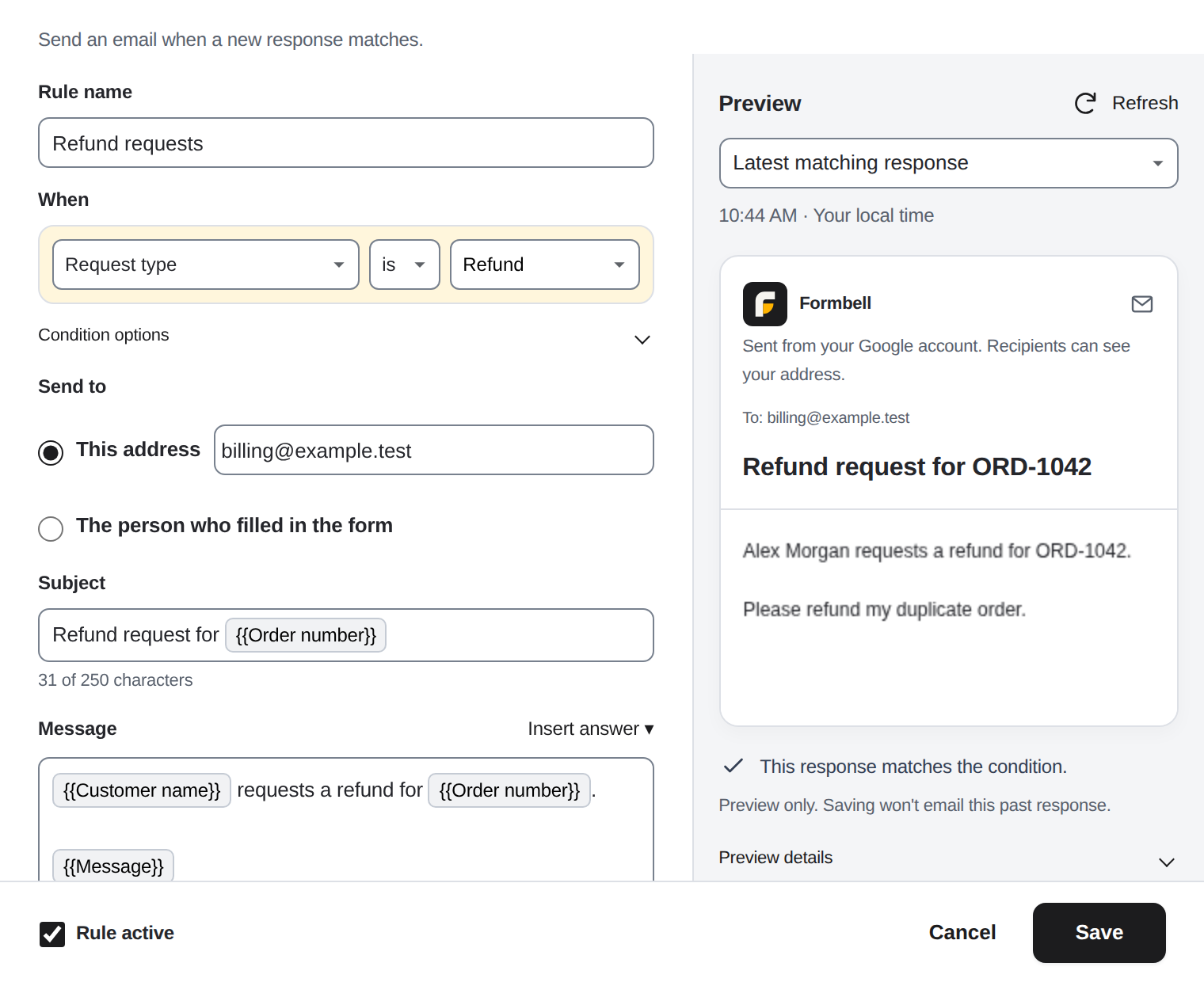
The rule editor. This example uses a refund rule; the steps are the same for sales.
2. Write the email
Give it a short subject, such as "New sales inquiry". In Message, write what your teammate needs to know. To add an answer, put the cursor where it should go, open Insert answer and choose the question, for example Name. Do the same for Message. Each answer shows up as a small tag with the question's name.
The final email could read:
New sales inquiry
Name: Sam
Message: I would like a quote
Messages are plain text by default. Choose Use HTML if you want basic formatting.
On the right, the preview shows the email built from a recent matching response. Choose Refresh after you change anything. If no recent response matches, the picker says Latest response (no recent match). If it asks you to Select a response, pick one from the list. The preview never sends anything.
When it looks right, choose Save, check the summary, and choose Save rule. Saving a rule doesn't turn on alerts for the form. That's the next step.
3. Turn on alerts and send yourself a test
If you see Preview and test on the rule, choose it to check the test email. Confirm with Turn on alerts and send test.
If you don't see it, use the switch next to Alerts off. If you're on Free and Answerfinch offers Keep this rule on Free, choose it. That makes this the one rule that runs, and pauses a rule you picked on another form.
If you turned alerts on with the switch, choose Send me a test on the rule. Answerfinch shows the email it will send, built from the latest matching response. If it asks you to Select a response, pick one first. The test goes only to you. Choose Send test to myself, or Cancel to close without sending.
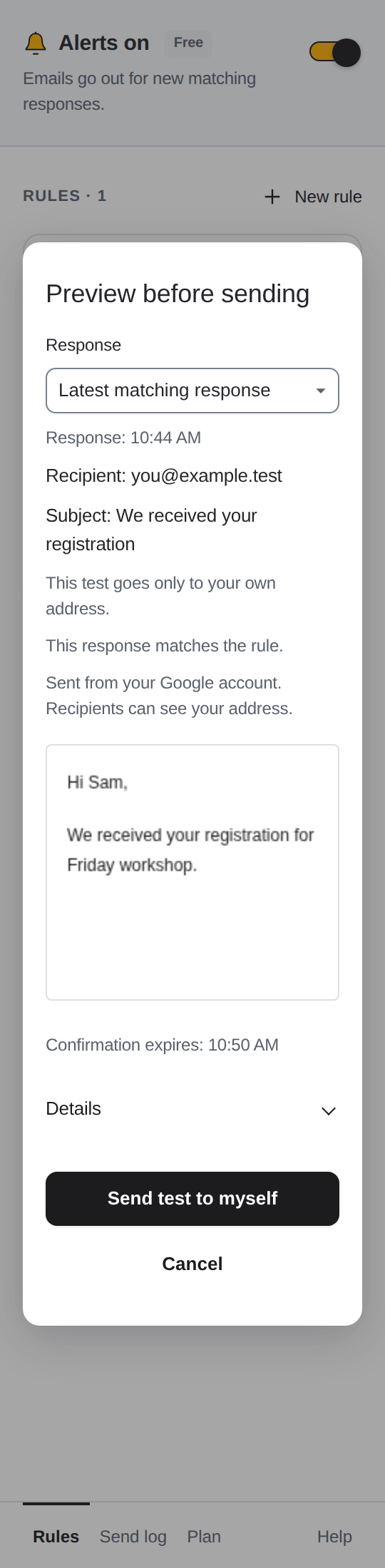
The test preview. The test always goes to your own address.
In the send log, Sent means Google accepted the email for sending. It doesn't tell you whether it reached the inbox, so check your inbox too. Tests count toward Google's daily sending limit.
4. Check it with a real response
Keep your own address on the rule for now. Submit a new response with Inquiry type set to Sales, then open Send log, choose Refresh and look for an Automatic entry.
A Support response doesn't match this rule, so Answerfinch doesn't send anything and may not add a log entry. That's expected.
When you're happy with it, choose Edit on the rule, change the address to your sales teammate's, and save again.
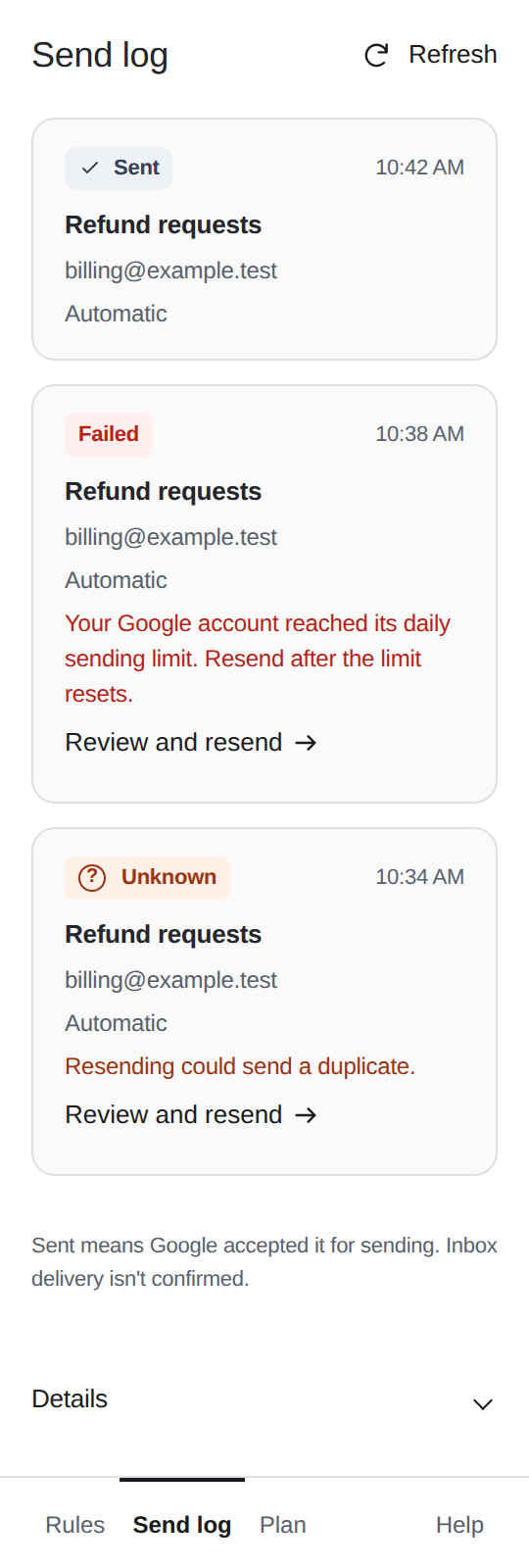
The send log, with example entries.
Add another route
Each rule has one condition and sends one email. To send Support inquiries somewhere else, choose New rule and make a Support rule. To email the person who filled in the form, make a confirmation rule. If Google Forms email collection is off, or Answerfinch can't check it, you'll need to choose which question holds their email before you can save.
On Free, one rule runs at a time. Pro is $4 a month or $29 a year, taxes included, and runs more rules across your account's forms, within Google's limits and Answerfinch's storage limits.
If the email doesn't arrive
Check that you're signed in to the right Google account, that alerts are on for the form, that the rule is active (and selected, on Free), and that the answer really matches the value in the rule. If the sidebar says alerts need reconnecting, choose Reconnect alerts. Reconnecting doesn't bring back earlier responses, so look in the send log for entries you can still resend.
Read the log before you resend anything. Unknown can mean the first email did go out, so resending could send it twice. A resend uses the current response and rule, not a saved copy of the original email.
Each form keeps its latest 200 log entries, and you can view or resend entries from the last 30 days, whichever limit comes first. Answerfinch doesn't send responses automatically if it sees them more than 48 hours after they were submitted.
For help, email runredteam@gmail.com. Tell us the step, the app version, any error code and the time in UTC. Please don't send form responses, recipient addresses or license keys.